
Payload Drawings
Payload Drawings
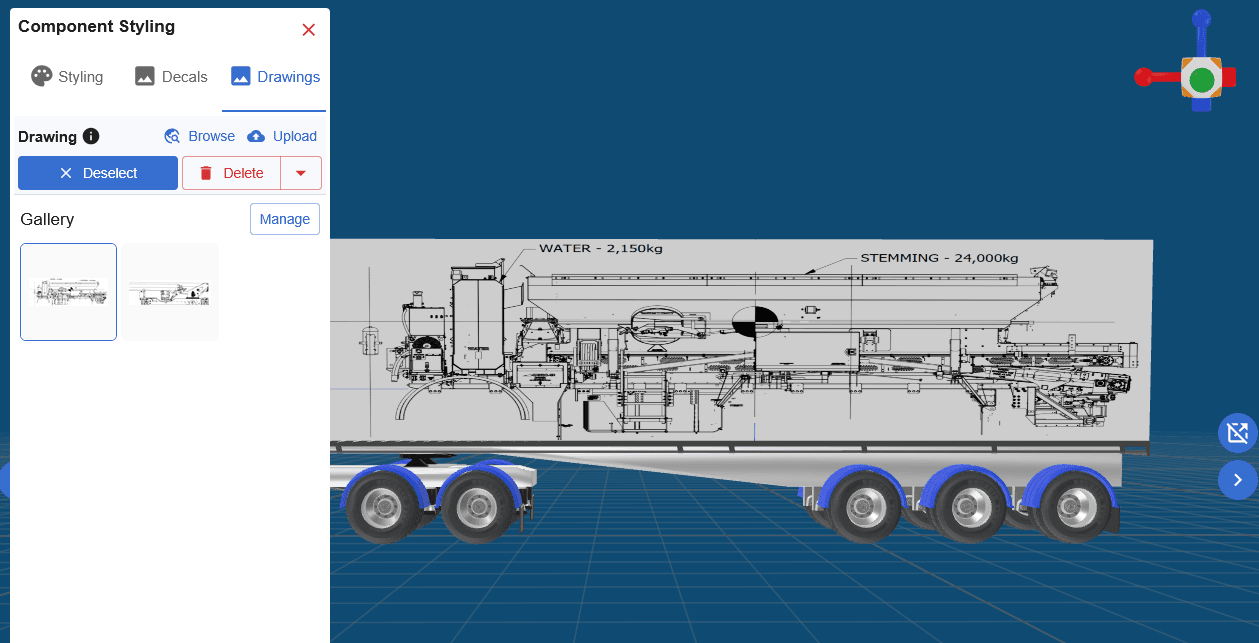
Payload drawings work much like decals, but instead of placing an image at a size you choose, the drawing automatically scales to fill a whole side of the payload. Use them when you want the payload to look more representative of the real body, for example by applying a side-view drawing of the equipment it carries.
Apply a drawing
Open the Styling menu and select the Drawings tab. Select Upload to add an image from your computer, or Browse to choose a drawing that has already been uploaded. Your drawings appear in the Gallery.
Select a drawing in the gallery to start placing it. As you hover over the payload, each face previews the drawing. Click a face to apply it. You can apply drawings to any of the payload's six faces, then select Deselect when you're done.
Drawings can only be applied to the default solid payload.
Remove drawings
Select Delete, then click a drawing on the payload to remove it. To remove every drawing at once, open the dropdown next to Delete and select Delete all drawings.
Select Manage in the gallery to remove drawings you no longer need from the list.